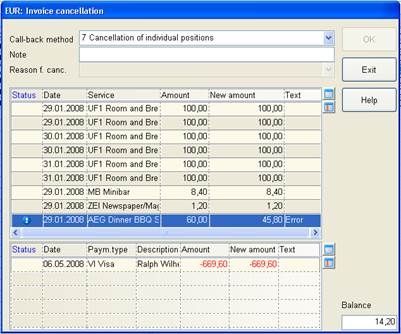
For corrective measures on a particular charge posting, proceed to the dialog invoice cancellation and carry out the following steps:
•Highlight the respective posting in the list box and double click to edit the line.
•Enter the correct amount in the column new amount.
•Enter a reason in the column amendment text. This text will be shown on the credit note.
•Select the text to appear for the service - either the manually entered text or the service’s description or both.
•Confirm with the enter-key and to exit the list box.
Figure 24: Correction of a posting
Afterwards, adjust the payment as follows:
•Highlight the respective payment in the list box and double click to edit the line.
•Enter the balance in the column new amount as displayed in the balance-field next to the list box.
•Enter a reason in the column amendment text. This text will be shown on the credit note.
•Confirm with the enter-key and to exit the list box.
A tick  on top of
the zero-balance field shows
that the procedure was carried out correctly. Press OK.
on top of
the zero-balance field shows
that the procedure was carried out correctly. Press OK.
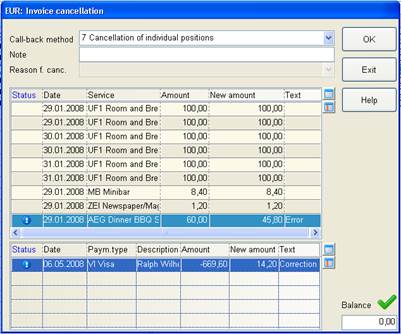
Figure 25: Adjusting the payment
SIHOT opens the settlement profile to print the credit note with a new invoice number, referring to the original number (credit note:)
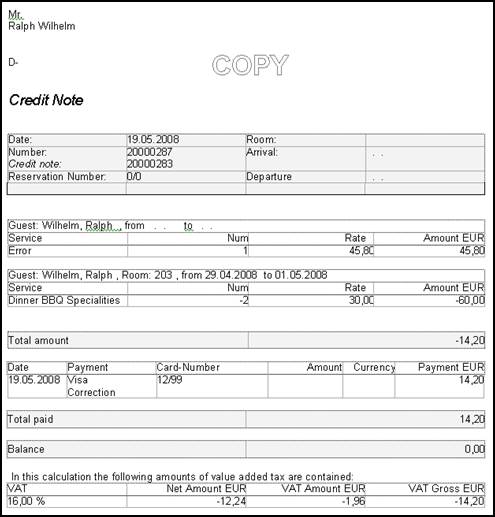
Figure 26: Credit note